Convert vCard (VCF) Contacts to Outlook PST: 3 Easy Methods
Quick Answer: To convert vCard (VCF) contacts to Outlook PST format, import them into classic Outlook and export the Contacts folder to a .pst file, or use SoftMagnat vCard Importer to batch-import VCF files straight into a new or existing PST. Afterwards, preview and export those PST contacts to vCard, CSV or WAB with SoftMagnat vCard Export Tool, with every contact attribute intact.
Phones, CRM systems and email apps all export contacts as vCard (.vcf) files. Outlook, on the other hand, stores contacts inside a PST data file. Moving from one to the other sounds simple, but Outlook’s own importer handles vCards one at a time and has well-known limits. This guide shows three ways to convert vCard contacts to Outlook PST, what to check afterwards and how to avoid losing phone numbers, emails or addresses.
Why Convert vCard Contacts to PST?
- Archive and backup: A PST keeps your address book in a single portable file.
- PC migration: Open the PST on a new computer without re-entering contacts.
- Shared address books: Give a team the same contact list inside Outlook.
- Phone transfers: Bring Android or iPhone contacts exported as VCF into Outlook.
Example scenario: An IT administrator collects 3,000 contacts from departing sales staff as VCF files. Rather than importing each card by hand, she needs one PST per department that the new team can open in Outlook.
Check Your Outlook Version First
This matters more than most guides admit. According to Microsoft, new Outlook for Windows can open emails in a PST, but contacts, calendar and tasks saved in .pst files are not accessible there. Microsoft also says importing a .pst needs classic Outlook. If your Outlook has a File menu, you’re using classic Outlook, and every method below works. If it doesn’t, switch to classic Outlook or use a CSV file instead.
Before You Start: Quick Checklist
- Copy your VCF files to a backup folder.
- Count the contacts so you can compare totals after the import.
- Close Outlook if you plan to use desktop software.
- Don’t save the PST in a OneDrive folder. Microsoft warns that OneDrive blocks syncing of Outlook data files.
Method 1: Convert vCard to PST with Classic Outlook (Free)
Outlook has no one-click “vCard to PST” command. The reliable free route has three stages, and the first two use steps Microsoft documents.
Stage 1: Turn the VCF into a CSV
Open C:\Users\<username>\Contacts in File Explorer, choose Import, select vCard (VCF file), then use Export to save a CSV file. Microsoft documents this process. For many files, see our guide to exporting multiple VCF files to CSV in bulk.
Stage 2: Import the CSV into Outlook Contacts
In classic Outlook, go to File > Open & Export > Import/Export > Import from another program or file > Comma Separated Values and import into your Contacts folder.
Stage 3: Export the Contacts Folder to a PST
- Choose File > Open & Export > Import/Export.
- Select Export to a file, then Outlook Data File (.pst).
- Select your Contacts folder and click Next.
- Choose a local location, optionally add a password and click Finish.
Limits: This takes several steps and is slow for large lists. Outlook also imports only the first contact from a multi-contact vCard, and a CSV can change field mapping, so check the result.
Method 2: Batch-Import VCF to PST with SoftMagnat vCard Importer
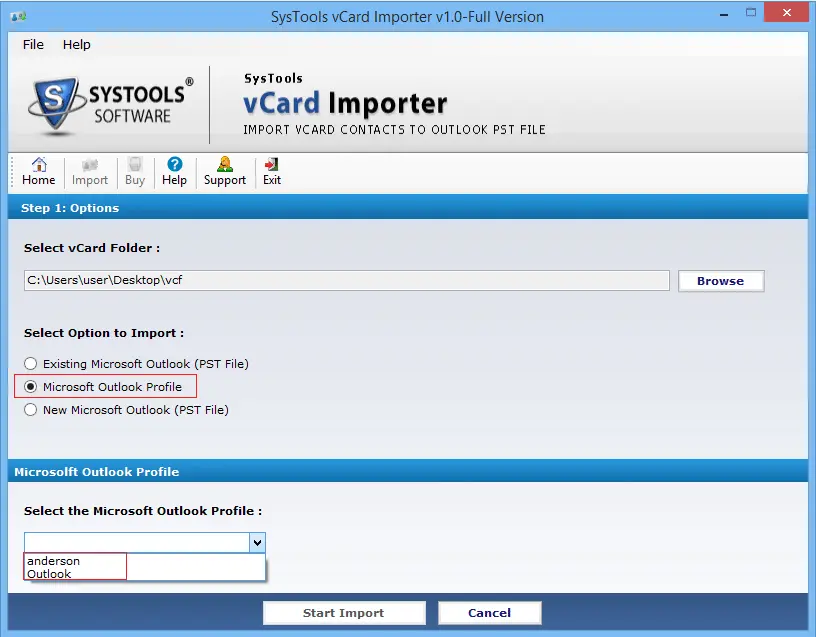
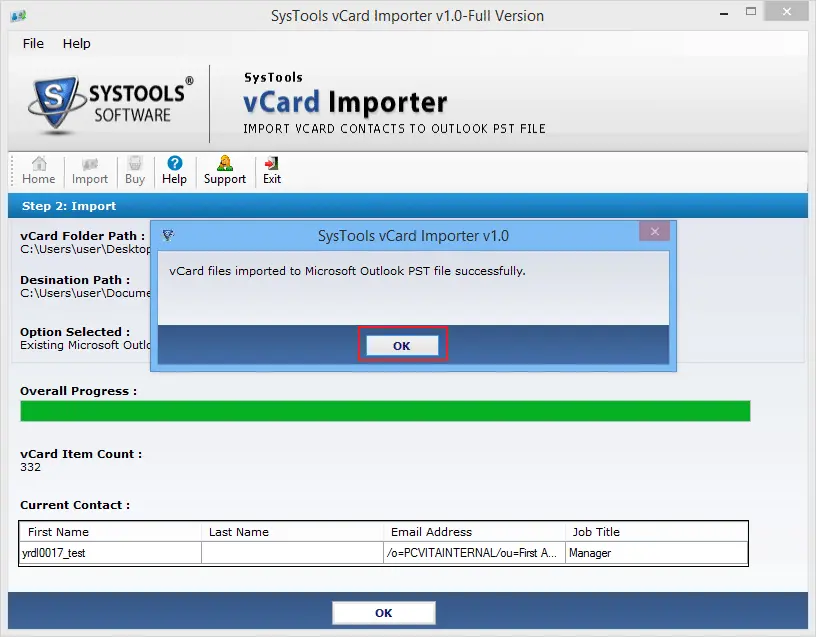
For hundreds or thousands of contacts, SoftMagnat vCard Importer skips the CSV stage. The steps are:
- Install the software on your Windows PC.
- Add your VCF files or a folder that holds many of them.
- Choose where to save: a new PST, an existing PST or your Outlook profile.
- Import and review the summary report.
- Supports vCard versions 2.1, 3.0 and 4.0.
- Keeps contacts with multiple email addresses and phone numbers.
- Imports batches of files with no file-size limit; the vendor says it has been tested with 10,000 contacts.
- Works with Outlook 2021, 2019 and earlier versions, on Windows 11 and earlier.
Trial: The free version imports the first 5 vCard contacts so you can check the result before buying. The full version is unlimited.
Method 3: Verify and Manage the PST with SoftMagnat vCard Export Tool
Once your contacts are in a PST, the SoftMagnat vCard Export Tool gives you a second pair of eyes and a way to move the data onward. You can add a single PST, a folder of PST files or your default Outlook profile through auto-detection, then:
- Preview every contact with its attributes before doing anything else, including company, phone numbers and categories.
- Export back out to vCard (one file per contact or one combined file), Google CSV, Yahoo CSV or WAB.
- Select contacts or folders and sort by company, phone, country or postal code.
- Extract contacts from corrupt PST files, as the product page describes.
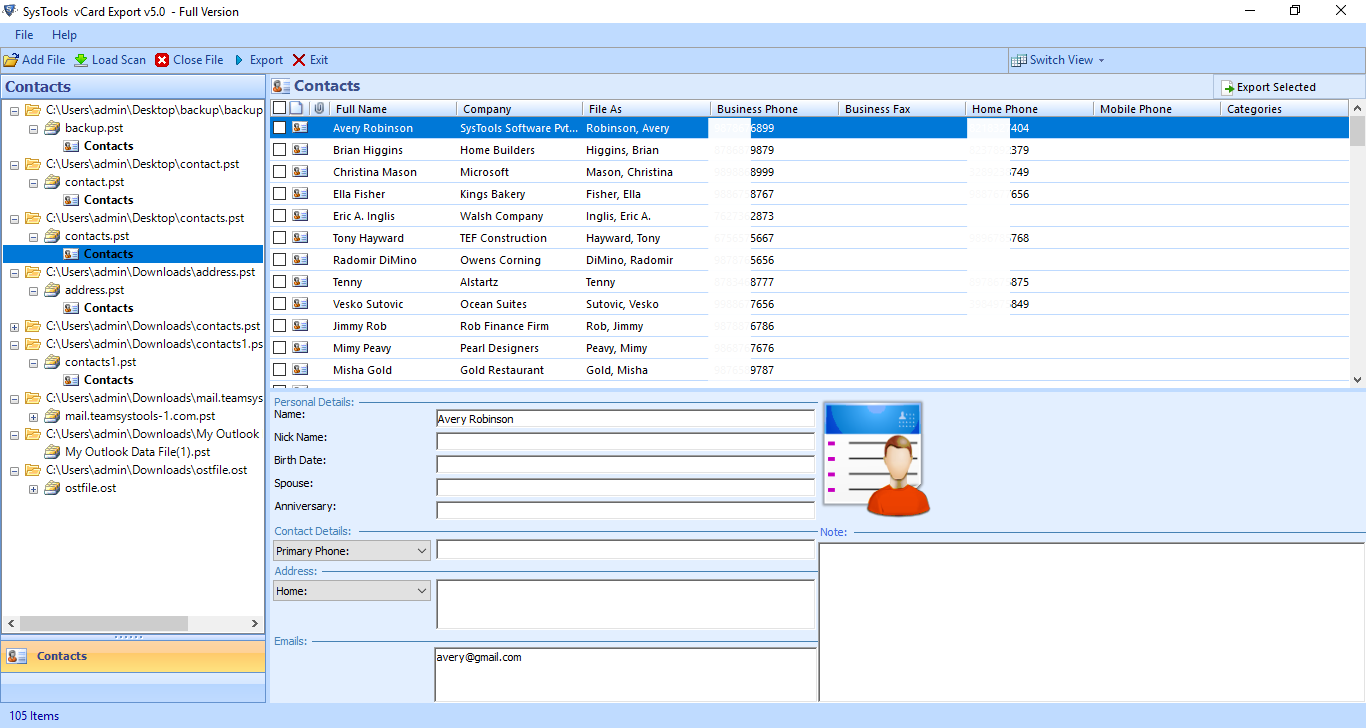
It carries personal details (name, nickname, spouse, anniversary, birthday, image, notes), phone numbers, home and business addresses and multiple email addresses. The trial previews all contacts and saves 15 contacts per file, while the full version is unlimited.
Example scenario: After importing 3,000 VCF contacts into a PST, the administrator opens it in the Export Tool. The preview shows that contacts with two email addresses kept both. She then exports the same PST to a single vCard file so mobile users can load it on their phones.
Which Method Should You Choose?
| Need | Best option |
|---|---|
| A few contacts, no budget | Method 1 (classic Outlook) |
| Hundreds or thousands of VCF files | Method 2 (vCard Importer) |
| Mixed vCard versions | Method 2 (vCard Importer) |
| Verify the PST or export it to vCard or CSV | Method 3 (vCard Export Tool) |
| Contacts stuck in a damaged PST | Method 3 (vCard Export Tool) |
What to Check After Conversion
- Open the PST in classic Outlook with File > Open & Export > Open Outlook Data File.
- Compare the contact count with your original number.
- Spot-check five contacts that have several phone numbers, emails, an address and a note.
- Look for duplicates. If the same cards were imported twice, clean them with SoftMagnat Outlook Duplicate Remover.
- Keep a backup copy of the finished PST.
Common Problems and Quick Fixes
- Only one contact imported: Outlook reads just the first contact in a multi-contact VCF. Use a batch tool or convert through CSV.
- Contacts missing in new Outlook: Contacts inside a PST aren’t accessible there. Use classic Outlook, or move contacts into your mailbox.
- Garbled characters: Check the encoding of the source file and re-import it.
- PST won’t open: The file may be damaged. See SoftMagnat Outlook PST Recovery.
Conclusion
You can convert vCard contacts to Outlook PST for free with classic Outlook, but the process is slow and limited for large lists. For bigger jobs, SoftMagnat vCard Importer imports VCF files in batch, and the SoftMagnat vCard Export Tool lets you preview, verify and export the PST contacts afterwards. Also read how to convert VCF files to Excel, try the Excel to vCard Converter.
Frequently Asked Questions (FAQs)
How do I convert vCard contacts to Outlook PST?
In classic Outlook, convert the VCF to CSV, import the CSV into your Contacts folder, then use File, Open and Export, Import/Export to export that folder to a .pst file. For batches, SoftMagnat vCard Importer imports VCF files directly into a new or existing PST.
Can Outlook import a VCF file that contains multiple contacts?
Not fully. Outlook imports only the first contact from a multi-contact VCF file. To import all of them, convert the file to CSV first or use SoftMagnat vCard Importer, which imports vCard files in batch.
Can I access vCard contacts stored in a PST in new Outlook?
No. Microsoft states that contacts, calendar and tasks saved in .pst files are not accessible in new Outlook, and PST imports require classic Outlook. Use classic Outlook to work with PST contacts.
Which SoftMagnat tool should I use to convert vCard to PST?
Use SoftMagnat vCard Importer to import VCF files into a new PST, an existing PST or your Outlook profile. Use SoftMagnat vCard Export Tool afterwards to preview PST contacts and export them to vCard, Google CSV, Yahoo CSV or WAB.
What can SoftMagnat vCard Export Tool do with my PST contacts?
It scans one or more PST files, previews each contact with its attributes, and exports selected contacts or folders to vCard (single or combined), Google CSV, Yahoo CSV or WAB. It can also extract recoverable contacts from corrupt PST files. The free trial saves 15 contacts per file.
Will I lose phone numbers or email addresses when converting vCard to PST?
You can if the converter keeps only the first value in a field. SoftMagnat vCard Importer keeps contacts with multiple email addresses and phone numbers. After any import, compare the contact count and spot-check contacts that have several numbers or emails.

I am a Technical Writer at SoftMagnat Software and having experience around 8 years, focused on creating clear and user-friendly documentation for software products. I simplify complex concepts into easy-to-understand guides, manuals, and tutorials.


