How to Convert VCF to Excel Without Losing Contact Details
Quick Answer: Excel can’t read multi-contact VCF files properly, so convert them to CSV first. Import the VCF into Windows Contacts or Google Contacts, export it as CSV, then open it in Excel with Data > From Text/CSV. For large or multi-contact files, import them into Outlook with SoftMagnat vCard Importer, then export them in bulk with SoftMagnat vCard Export Tool so names, phone numbers, emails and addresses stay intact.
Your sales team exports 1,200 contacts from phones, a CRM or Outlook. The file arrives as a single .vcf, and your finance or marketing team needs it in a spreadsheet. Double-clicking it in Excel shows one tangled column, and copying contacts by hand takes hours and risks errors. This guide explains why Excel struggles with VCF files, three reliable ways to convert them, and how to check that no contact detail is lost.
What Is a VCF File and Why Doesn’t Excel Open It Properly?
A VCF (vCard) file is a plain-text contact card. Each contact is a block of lines, not a row of cells. Here is a simple example with sample data:
BEGIN:VCARD
VERSION:3.0
FN:Priya Nair
ORG:Brightline Logistics
TITLE:Procurement Manager
TEL;TYPE=WORK:+44 20 7946 0123
TEL;TYPE=CELL:+44 7700 900123
EMAIL;TYPE=WORK:priya.nair@example.com
ADR;TYPE=WORK:;;12 Harbour Road;Bristol;;BS1 4AB;UK
NOTE:Met at Expo 2026
END:VCARD
Excel expects rows and columns. When a file holds hundreds of these blocks, Excel can’t tell where one contact ends and the next begins, so you get a broken layout. The fix is to convert the VCF into CSV, which Excel reads natively.
What Contact Details Can Get Lost During Conversion?
- Multiple phone numbers or emails: Some converters keep only the first one.
- Addresses: Street, city, postal code and country can merge into one column or shift columns.
- Special characters: Accents and non-English names turn into symbols if the encoding is wrong.
- Leading zeros and plus signs: Excel can turn
+447700900123into447700900123. - Notes, birthdays and job titles: Often dropped by quick online converters.
- Contacts in a multi-contact file: Classic Outlook for Windows imports only the first contact from such a file, as documented by Outlook expert guides.
Before You Convert: A 3-Step Checklist
- Make a copy of the original .vcf. Never convert your only copy.
- Count the contacts in the source so you can compare the totals later.
- Check privacy rules. Corporate contact lists often contain personal data, so avoid free online converters that upload your file to unknown servers.
Method 1: Convert VCF to CSV with the Windows Contacts Folder (Free)
This is the method Microsoft documents for turning a vCard into a CSV.
- Open File Explorer and go to
C:\Users\<username>\Contacts. - Choose Import at the top, select vCard (VCF file) and click Import.
- Pick your .vcf file. For each contact, choose OK, then Close.
- Choose Export, select CSV file and click Export.
- Name the file and keep the default fields, then click Finish.
- Open the CSV in Excel (see the tips below) and save it as .xlsx.
Limits: You confirm each contact with a dialog box, so a list of 1,000 contacts is slow. The export uses default fields, so check that notes and extra numbers appear.
Method 2: Use Google Contacts as a Converter (Free)
- Open Google Contacts and choose Import.
- Upload your .vcf file.
- Choose Export, select the contacts and pick Google CSV or Outlook CSV.
- Open the downloaded CSV in Excel.
Outlook experts commonly recommend this route for multi-contact files. Limits: Your contacts are uploaded to a Google account, which may not suit a corporate policy. Label and field names can also change between the two CSV formats, so always check the result.
Method 3: Convert in Bulk with SoftMagnat vCard Export Tool (Best for Large Lists)
Manual methods work for a few dozen contacts. For hundreds or thousands, a desktop workflow saves hours and keeps every attribute in place.
Step 1: Import the VCF Files into Outlook
SoftMagnat vCard Importer imports vCard files in batch into an Outlook PST. It supports vCard versions 2.1, 3.0 and 4.0, and it keeps contacts that have multiple email addresses and phone numbers. You can save to a new PST, an existing PST or your Outlook profile.
Step 2: Export the Outlook Contacts to CSV
The SoftMagnat vCard Export Tool reads your PST and exports the contacts in batch. It offers five export options, including Google CSV and Yahoo CSV files that open directly in Excel, plus vCard (multiple files or one combined file) and WAB.
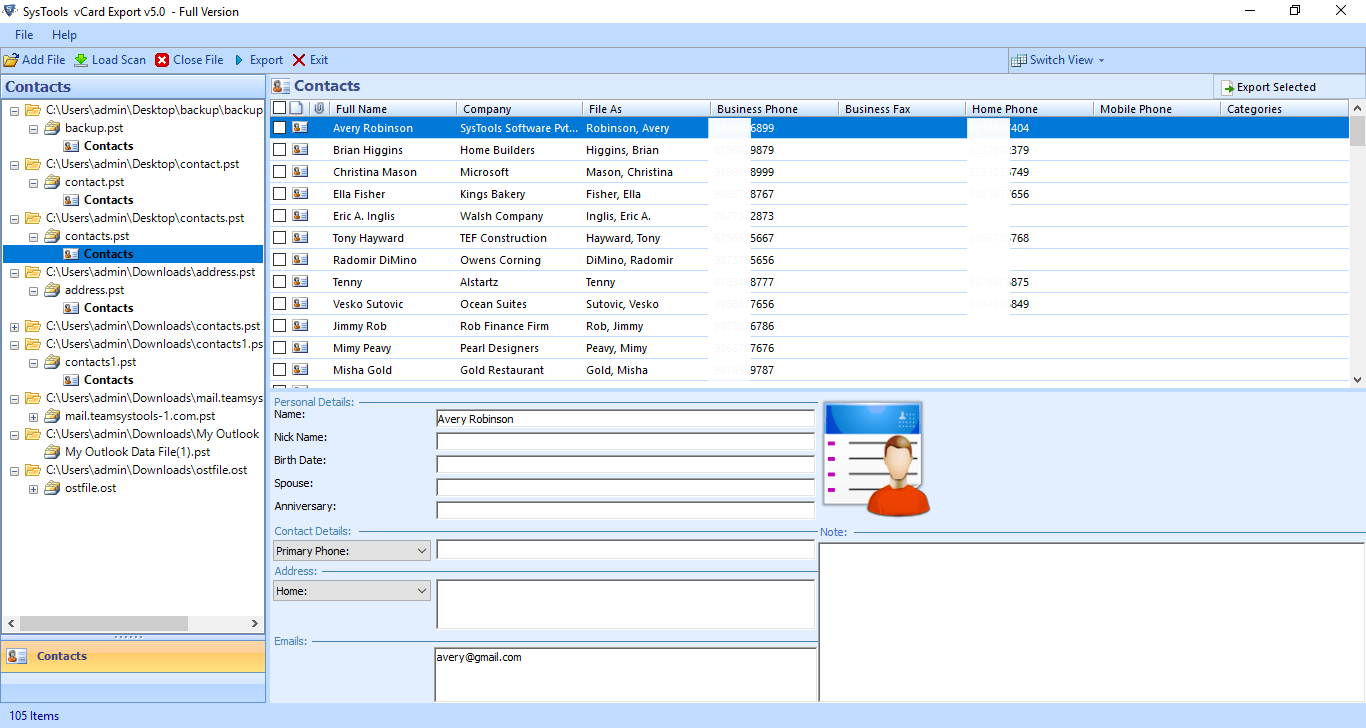
- Preview before you export: See each contact with its attributes, including company, phone numbers and categories.
- Complete fields: Name, nickname, spouse, anniversary, birthday, image, notes, multiple phone numbers, home and business addresses and multiple emails.
- Selective export: Pick specific contacts or folders.
- Sorting: Sort by company, phone, country, state or postal code.
- Add files your way: Single PST, a whole folder of PSTs or auto-detect your default Outlook profile.
- Damaged PST files: It can extract recoverable contacts from corrupt PST files.
The tool runs on Windows 11, 10, 8.1, 8, 7, Vista and XP. A free trial lets you preview your contacts first. The trial saves 15 contacts per file, and the full version is unlimited. The vCard Importer trial imports the first 5 contacts.
Example scenario: An operations manager receives 18 separate VCF files from regional offices. She adds the folder to the importer, saves everything into one new PST, then exports that PST to CSV. She opens one file in Excel with every region’s contacts in a single sheet.
Manual Methods vs SoftMagnat vCard Export Tool
| Factor | Windows Contacts / Google | SoftMagnat vCard Export Tool |
|---|---|---|
| Cost | Free | Free trial, then paid |
| Large lists | Slow, one-by-one prompts (Windows) | Batch import and export |
| Preview before export | No | Yes |
| Corrupt PST contacts | Not supported | Supported in the export tool |
| Data stays on your PC | Windows: yes. Google: uploaded to the cloud | Yes, desktop software |
How to Open the CSV in Excel Without Losing Details
Don’t double-click the CSV, because Excel may change your data. Instead:
- Open Excel and choose Data > From Text/CSV.
- Set File Origin to 65001: Unicode (UTF-8) so accents and non-English names display correctly.
- Click Transform Data, select your phone columns and set the data type to Text. This keeps leading zeros and plus signs.
- Click Close & Load, then save the file as .xlsx.
Verify the result: Compare the row count with your original contact count. Spot-check five contacts that have several phone numbers or emails, then use Data > Remove Duplicates on the email column if needed.
Best Practices for Business Contact Data
- Keep the original VCF as a backup.
- Remove duplicates before importing to a CRM.
- Use consistent phone formats, such as international numbers with a plus sign.
- Limit who can access exported spreadsheets, since they contain personal data.
Conclusion
Converting VCF to Excel is easy to get wrong when files hold many contacts, several phone numbers per person or international characters. For a handful of contacts, the Windows Contacts or Google methods work. For large business lists, SoftMagnat vCard Importer and the SoftMagnat vCard Export Tool give you a faster, previewable workflow. Need the reverse direction? Try the Excel to vCard Converter, or explore all SoftMagnat products.
Frequently Asked Questions (FAQs)
Can Excel open a VCF file directly?
Not reliably. A VCF is a text file where each contact spans several lines, so Excel shows a single messy column when a file holds more than one contact. Convert the VCF to CSV first, then open the CSV in Excel.
How do I convert VCF to Excel without losing contact details?
Convert the VCF to CSV using Windows Contacts, Google Contacts or SoftMagnat vCard Export Tool, then open it in Excel using Data, From Text/CSV. Choose UTF-8 encoding, set phone columns to Text, and compare the row count with your source contacts.
Why does Outlook import only one contact from my VCF file?
Classic Outlook for Windows imports only the first contact in a multi-contact VCF file. To import all contacts, convert the file to CSV first or use SoftMagnat vCard Importer, which imports vCard files in batch into an Outlook PST.
Can SoftMagnat vCard Export Tool export contacts to Excel?
SoftMagnat vCard Export Tool exports Outlook PST contacts to vCard, Google CSV, Yahoo CSV and WAB. CSV files open in Excel, where you can save them as .xlsx. It previews contacts with their attributes before export and can extract contacts from corrupt PST files.
Does the free trial of SoftMagnat vCard Export Tool have limits?
Yes. The free trial lets you add PST files, preview contacts with attributes and sort them, but it saves only 15 contacts per file. The full version has no saving limit and also supports merging multiple contacts into a single vCard.
Why do phone numbers lose zeros or plus signs in Excel?
Excel treats long numbers as numeric values and removes leading zeros and plus signs when you double-click a CSV. Import the file with Data, From Text/CSV and set the phone columns to Text to keep numbers exactly as written.

I am a Technical Writer at SoftMagnat Software and having experience around 8 years, focused on creating clear and user-friendly documentation for software products. I simplify complex concepts into easy-to-understand guides, manuals, and tutorials.


